 Minecraft
 Server Icon Maker
With the Minecraft Server Icon Maker, upload a logo, photo, or pixel art, select a square crop, and get a ready-to-use 64 × 64 px server-icon.png for your Minecraft server—with a server list preview, no sign-up, right in your browser.
Built by Florian Galz
Icon ready? Show it on your own Minecraft server.
Drag an image here or select one
JPG, PNG, WebP, GIF or AVIF up to 40 MB. You can also paste screenshots with Ctrl+V.
Everything stays in your browser—no uploads.
Blends pixels when scaling down: ideal for photos, logos, and text.
Result
server-icon.png
Upload an image to see the icon here.
Place the file in your server's root folder, alongside server.properties, and restart the server.
How your icon looks in the server list

My Minecraft server
Survival & Friends
Join now!
Preview styled after the Minecraft Java multiplayer server list. You can customize the MOTD in the MOTD Generator.
Example result
How an image becomes your server icon
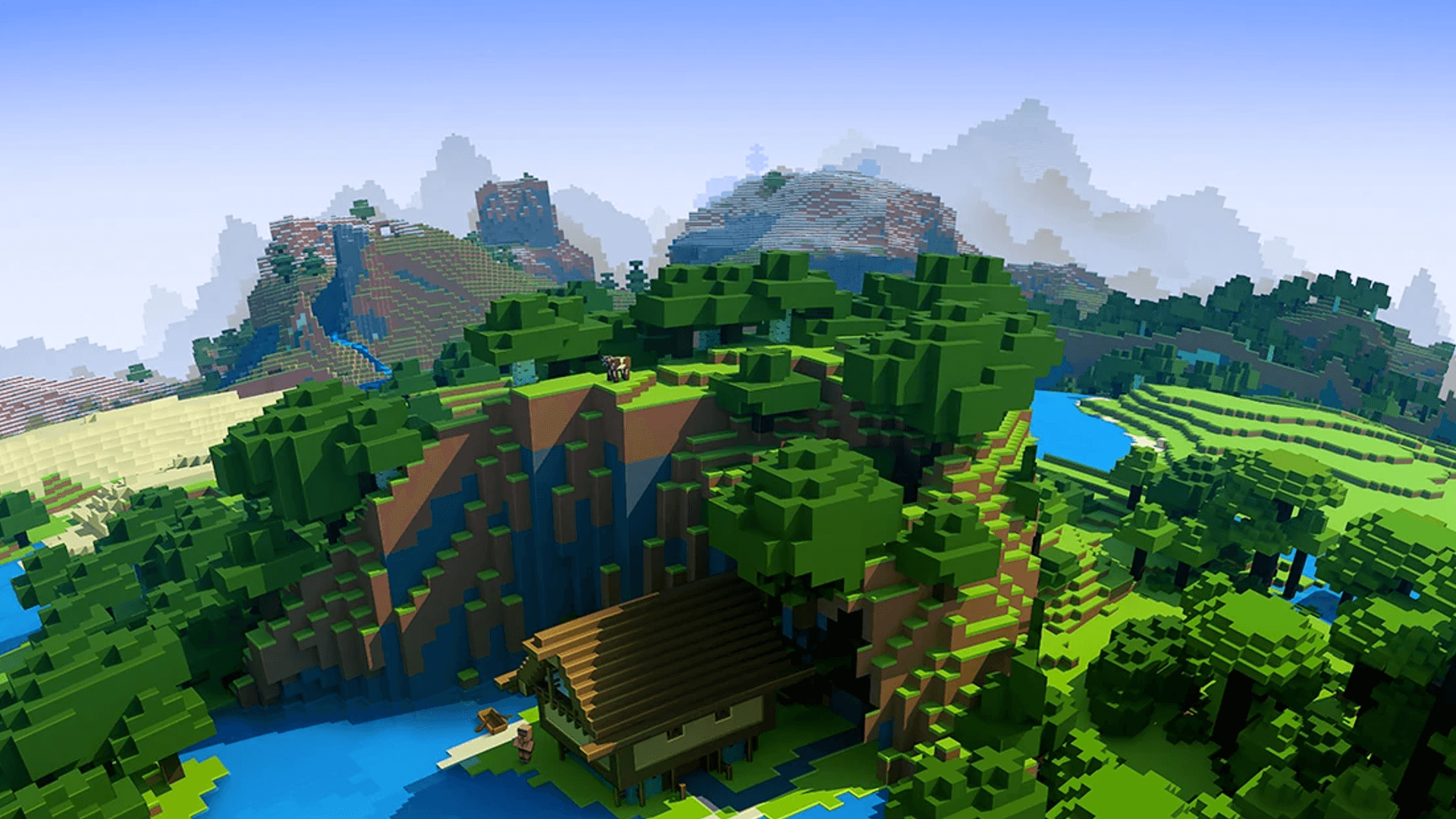
The tool crops a square from your image and scales it down to 64 × 64 pixels. Example: the image behind “Load example image,” with “Sharp (Pixel Art)” scaling. Your result depends on your image and crop.
Example · Input: minecraft-landschaft.png, 576 × 384 px


Input
- Image
- minecraft-landschaft.png
- 576 × 384 px, landscape, pixel art in 6-px blocks
- Crop
- 384 × 384 px, centered
- the largest square in the center of the image, freely movable
Output
- File
- server-icon.png · 64 × 64 px
- Transparent PNG, exactly the size Minecraft Java expects
- Scaling
- Sharp, factor 6
- each 6-px block becomes one icon pixel, with no soft edges
- Save location
- server-icon.png
- in the server's root folder next to server.properties, then restart
Features
Create Minecraft Server Icons at 64 × 64 px
The server icon, often called a server image or server logo, is the small image next to your server in the Minecraft Java multiplayer server list. This Server Icon Maker turns your logo, photo, or pixel art into the format Minecraft expects.
Always exactly 64 × 64 px
Whether it's a large photo or a small logo, the result is exactly the size Minecraft Java requires for server-icon.png. No calculations or image editing software needed.
Square crop
A 1:1 frame shows which part of the image will appear in the icon. Move it or drag its corners; the arrow keys work too.
Smooth or sharp scaling
Photos and logos are scaled down smoothly; “Sharp” preserves every hard edge in pixel art.
Preview in the server list
See your icon at its original size, at twice the size, and as it appears beside the server name and MOTD in the multiplayer server list.
Transfer directly to server
With a ZAP-Hosting Minecraft server, the tool places the file in the right location and restarts the server if it's running. You can undo it with one click.
Everything in your browser
Cropping and scaling happen locally in your browser. Nothing is uploaded for the download.
How it works
How to create a Minecraft server icon
Three steps from image to icon in the server list.
Step 1
Upload image
Drag a logo, photo, or pixel art into the tool, select a file, or paste a screenshot with Ctrl+V: JPG, PNG, WebP, GIF, or AVIF up to 40 MB.
Step 2
Choose crop and scaling
Move the square frame over the part you want in the icon, then choose “Smooth” for photos or “Sharp” for pixel art. The preview and server list show the result immediately.
Step 3
Download or transfer
Download server-icon.png at 64 × 64 px, place it in the root folder next to server.properties, and restart the server. If you have a Minecraft server at ZAP-Hosting, “Transfer” puts the file there directly and restarts the server if it's running.
Guide
Place server-icon.png on the server
Here's how to put the downloaded file on your server if you upload it yourself. With a ZAP-Hosting Minecraft server, “Transfer” takes care of all three steps.
- 1
Open the file manager or connect via FTP and go to the server's root folder, where server.properties is located.
- 2
Upload the file and check its name: exactly server-icon.png, all lowercase, with no double extension.
- 3
Restart the server and click “Refresh” in the Minecraft server list.
Filename on the server: server-icon.png
Discover more
More Minecraft tools for your server
Create a matching MOTD for the icon, color your server name with color codes, check whether your server is online, configure server.properties, make pixel art, or crop an image for other formats.
Server Configuration Generator
Describe your server.properties in your own words using the ZapX AI Agent or set each option manually — with a live preview to copy or download.
Built by Florian Galz
Server Status Checker
Check live whether a Minecraft server is online — player count, MOTD, version, server icon, and Mods.
Built by Luca Stanek
Pixel Art Generator
Upload an image and turn it into Minecraft blocks—with a materials list, building plan, and /fill commands. All in your browser.
Built by Eric Mager
Color Codes
All 16 color codes and 6 formatting codes, with chat, MOTD, and MiniMessage syntax and HEX values in one reference.
Built by Rugile Rutkauskaite
MOTD Generator
Design your server MOTD with colors, gradients and a live preview – ready for server.properties, Bedrock and MiniMessage.
Built by Marvin Kluck
Crop an image (Image Cropper)
NewCrop images freely, into circles, or to fixed formats such as YouTube thumbnails, Discord banners, Instagram Stories, and X headers. Pixel-perfect, exportable as PNG, JPG, or WebP, and runs entirely in your browser.
Built by Luca Stanek
FAQ
Frequently asked questions about Minecraft Server Icon Maker
Quick answers about the Minecraft server icon's size, image formats, file location, and display.
A PNG file named server-icon.png, exactly 64 × 64 pixels. If your image has transparent areas, they stay transparent. From the example image (576 × 384 px), the tool crops a 384 × 384 px square and scales it down to 64 × 64 px. The tool shows the file size next to your finished icon.
Exactly 64 × 64 pixels in PNG format. If the image is larger or smaller, Minecraft Java won't display it and reports in the server log that the icon must be 64 pixels wide and high. The Icon Maker always produces exactly that size.
In your server's root folder, alongside server.properties—not in a subfolder such as world or plugins. The filename must be exactly server-icon.png, all lowercase.
Usually, the file is the wrong size, has a different name (such as server-icon.png.png or Server-Icon.png), or is in the wrong folder. The server only reads the icon at startup, so restart it after uploading. Then click “Refresh” in the server list, as the client briefly caches the old image.
The tool is free and requires no sign-up. Cropping and scaling happen entirely in your browser; your image isn't uploaded. Only if you transfer the icon directly to your ZAP-Hosting server is the finished server-icon.png sent to that server.
JPG, PNG, WebP, GIF, or AVIF up to 40 MB. Drag an image into the tool, select a file, or paste a screenshot with Ctrl+V. If the selected area is smaller than 64 px, the tool enlarges it and shows a notice—a larger image will give you a sharper icon.
“Smooth” averages the pixels in each area when scaling down and works well for photos, logos, and text. “Sharp” samples exactly one image pixel per icon pixel, preserving hard edges—ideal for pixel art, blocks, and skins. For the cleanest pixel art, use a crop whose width is a multiple of 64 px, such as 128 or 192 px.
No. Custom server icons are only available in Minecraft Java Edition. Bedrock servers don't display an image in the server list; you can only style the server name with color codes.
No. Minecraft only displays a static PNG. If you upload a GIF, the Icon Maker uses the first frame of the animation.
Any more questions?
Contact Support
Your own Minecraft server, ready for your icon
A ZAP-Hosting Minecraft server is ready in under 60 seconds. Transfer your server icon with one click—no file manager or manual server restart needed.
No setup. No risk. Online in seconds.
Looking for more tools? View all Minecraft tools