
Status with player count
State, uptime and how many players are online right now, as a reply in chat.
You decide which services we may enable for analytics, personalization, and external content.
We use cookies and similar technologies on our website to personalize content, embed external media, and better understand how individual areas are used.
Necessary cookies
These entries support essential functions such as security, stability, and form processing.
Optional sections
Your data may be processed with your consent or on the basis of legitimate interests. In the cookie settings, you can reject or explicitly allow each optional category.
Some services process personal data in third countries. By consenting, you also agree to this transfer. You can find more information in our Privacy Policy.
You can reopen and change your selection at any time. · 1.0.2
The ZAP-Hosting game server Discord bot: slash commands, live status widgets and role permissions, right in your Discord. Nothing to code or host.
ZAP-Hosting's Discord bot lets you manage your game server from Discord: start, stop, restart and check your ZAP-Hosting game servers with slash commands, and keep an eye on them with live status widgets in any channel. You set permissions per server and per Discord role, there's no bot to code or host, and risky actions like stopping the server or running console commands ask for a confirmation button first. The public status widget is free; full control comes with a ZapX Pass that includes the Discord bot.
Examples
Real situations: server status in Discord, status widgets and banners, picking a server, confirmations, permissions, unlocking commands and setup.
State, uptime and how many players are online right now, as a reply in chat.
/widget posts a message that keeps itself up to date: status, players, uptime, ping and load.
type: Admin adds Start, Stop and Restart buttons. Only people with ZapX permission can use them.
With type: Banner the bot posts your server status as an image. It refreshes on its own and can add CPU, RAM and player history charts.
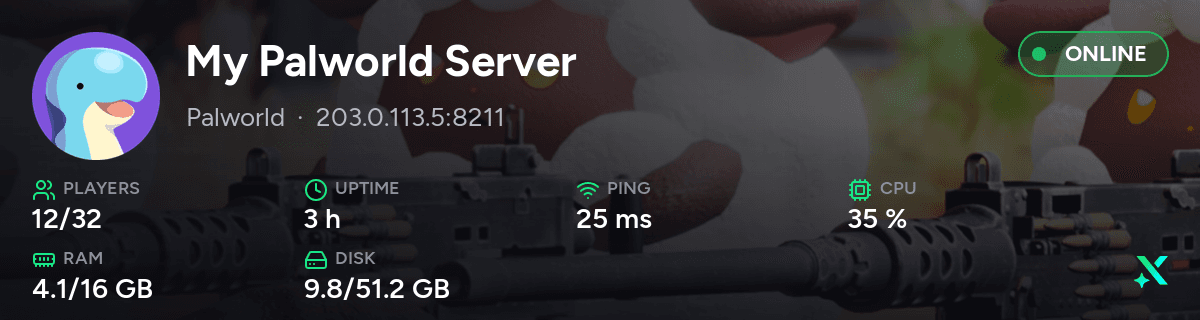
Under Settings → Discord Bot you pick text or image banner and which values the widget shows.
Running several servers? Choose the right one right inside the command.
Nothing runs on your server until you confirm the command with a button.
Anyone without access gets a clear reply, and your server stays untouched.
In ZapX you decide which Discord role may use status, power actions or the console.
At first only administrators see the control commands in Discord. Unlock them for your roles under Server Settings → Integrations → ZapX (example view).
Run /zapx setup to start the setup right inside Discord. You need the “Manage Server” permission.
Setup
Here's what you need before you control your game server from Discord. Full control needs a ZapX Pass with the Discord bot.
Sign up with email, Discord or Google. One ZapX account holds all of your servers.
Link your Discord account in your settings under “Linked Accounts”. That's how the bot knows who you are.
Pick your game in the shop and order your game server. The public status widget works right away; slash commands, admin widgets and role permissions need a ZapX Pass that includes the Discord bot.
Commands
Running several servers? Pick the right one in the “server” option. At first only administrators see the control commands in Discord; unlock them for your roles under Server Settings → Integrations → ZapX.
/statusShows state, uptime and the player count.
/startStarts the server.
/restartRestarts the server.
/stopStops the server after you confirm with a button.
/console sendSends a console command to the server after you confirm with a button. You type the command into the “command” option.
/widgetPosts a status widget to the channel that updates itself automatically. Needs “Manage Server” (all widget types).
/widget type: AdminAdds Start, Stop and Restart buttons.
/widget type: BannerShows the status as an image.
/zapx linkChecks whether your Discord account is linked to ZapX.
/zapx setupConnects a Discord server to your ZapX account. You need “Manage Server” for this.
Roles & permissions
Everything is locked by default. You allow actions per server and per Discord role, and you can take them back at any time.
| Action | Members | Mods | Admins |
|---|---|---|---|
| View status | |||
| Start, stop, restart | |||
| Send console commands |
The roles are up to you: you use your own Discord roles.
FAQ
Commands, permissions, setup and security. Short answers.
With slash commands right in your Discord chat: /status shows the state, /start, /restart and /stop control the server, and /console send runs a console command. The bot is run by ZAP-Hosting, so there's no bot to code or host and no SSH or RCON credentials to hand out. Setup is covered in “How do I set up the ZAP-Hosting Discord bot?”.
You need a ZapX account with at least one game server, a Discord account and, for the control commands, a ZapX Pass that includes the Discord bot.
Setup takes four steps: ZapX Pass
Your ZAP-Hosting game servers.
The bot controls game servers, for example for Minecraft, Palworld or FiveM, so you can start a Minecraft server from Discord with /start, no plugin needed. Other products such as TeamSpeak or dedicated servers stay in the ZapX panel. Want to run your own bot instead? That's a separate product. More on our offers: Game server hostingMinecraft server hostingPalworld server hostingFiveM server hostingHost your own Discord bot
/status shows the state of your server. /start, /restart and /stop handle power, and /console send runs a console command. /stop and /console send ask for a confirmation before anything happens. /widget posts a status widget to a channel, and /zapx link and /zapx setup take care of the connection.
Yes, with a status widget that updates itself.
/widget posts your server status to a channel. With “type” you choose Public (status only), Admin (with Start, Stop and Restart buttons) or Banner (status as an image, optionally with CPU, RAM and player history charts). You decide which values it shows in the ZapX panel under Settings → Discord Bot. Every widget type can only be created by someone with “Manage Server” (or Administrator) on the Discord server. The public widget (text or banner) for your own servers also works without a ZapX Pass. Admin widgets, the control commands and setting up a Discord server need a ZapX Pass that includes the Discord bot.
At first, only administrators can see the control commands.
Unlock them for your roles in your Discord server settings under Integrations → ZapX. That only controls who sees the commands. Whether someone may actually run them is checked by ZapX on every call, based on the permissions you set.
Only the roles you allow, per server and per Discord role.
You set permissions in your ZapX settings: view status, start/stop/restart, and console commands. Without your permission nobody can do anything, not even through the bot.
To connect a Discord server to ZapX, you need “Manage Server” or Administrator there. Your members don't need any special permissions to use the commands, just the role you gave access to in ZapX. Only posting a /widget needs “Manage Server”.
They can't do it by accident: /stop and console commands only run after a confirmation button, and only the person who ran the command can confirm. The bot only acts within the permissions you set, and error details never show up in chat.
Yes, at any time in your ZapX settings.
You can revoke permissions, disconnect a Discord server or switch the bot off completely. After that, the bot no longer responds to commands for your servers.
Yes. You can connect several Discord servers and pick the server you want to control with the “server” option of each command. If you only have one server, you can leave the option empty.
No. It's a Discord bot from ZAP-Hosting that controls the servers you rent from us. Your server keeps running at ZAP-Hosting, and Discord is just the remote control.
Still have questions?
Contact supportReviews
Real feedback on support and setup.
Link Discord, allow your servers and post your first status widget with /widget.
You decide who can do what.
© 2026 ZAP-Hosting GmbH
 Preferred source on Google